Conflicting Client Video Feedback: Build Your Next Edit List
Updated: 5 days ago
An email asks for a shorter opening. A WhatsApp message asks you to keep it. A voice note refers to a cut you have already replaced. Before you make another export, you need to know which instructions you can actually edit—and which questions still need an answer.
The free Revision Decision Desk helps a solo video editor bring those notes into one local working record. You enter the feedback and make the decisions. The tool checks the recorded cut, variant, location and decision details, then separates a Ready edit list from a Decision digest of unresolved items.
Free download · No email or purchase required · Open the included HTML file in your browser · Manual input, no AI
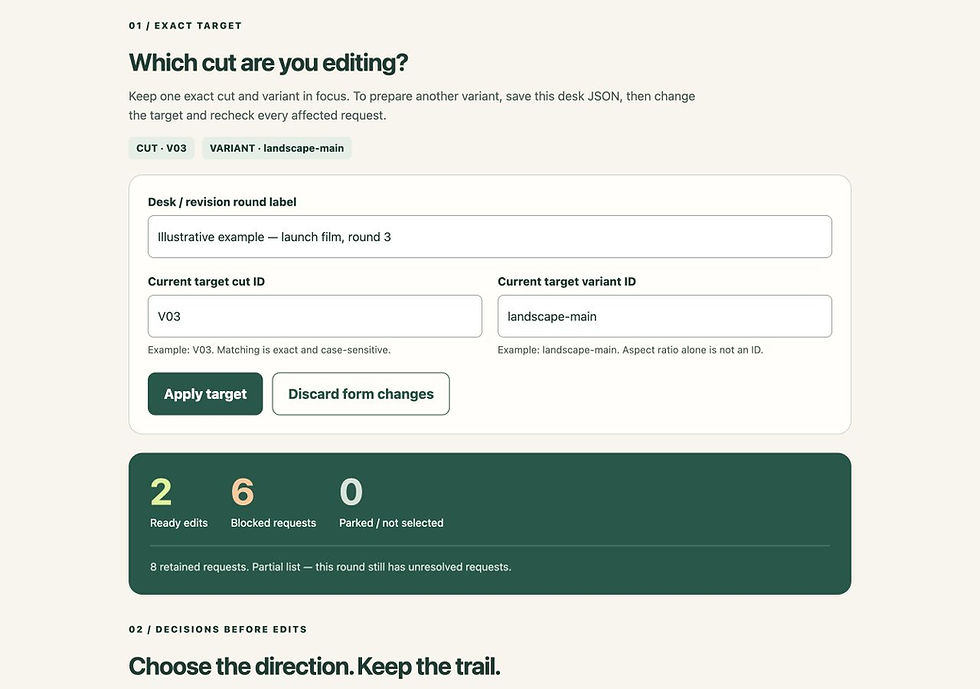
Actual Revision Decision Desk v0.1.0 interface using fictional notes. A planning record, not client approval.
Start with the included fictional example. It contains eight requests: two are ready for the selected cut and variant; six need clarification, alignment or a decision. You can see why each one is held before entering your own notes.
Bring the request and its context together
A timestamp alone is not enough. 00:12 in an older cut may show a different shot. Two landscape exports may have different introductions. A portrait version may put text somewhere else. Keep the exact cut and variant beside the request instead of treating the same second—or the same aspect ratio—as the same instruction.
For each note, preserve its original wording and record its source, requester role, source cut, variant, location and proposed action. Use a role such as “client decision owner” rather than adding a person's name or email address when you do not need it. You must read or listen to the original material yourself; the Desk does not fetch messages, transcribe voice notes or inspect footage.
For future rounds, one review channel and one decision owner may be enough. A public discussion among video makers describes scattered channels and contradictory comments, while also recommending established review platforms. These are unverified personal accounts, not evidence of this tool's results.
What makes an item ready to edit?
The Desk checks your recorded instruction, source and requester role, edit owner, location or explicit whole-video setting, and alignment with the selected cut and exact variant. You declare conflicts manually. A conflict group needs aligned members and a recorded chosen action, decision owner and reference before its selected request can proceed.
The checks cannot establish that you understood the message, that the owner has authority, or that the edit is feasible. You make those judgments.
Use Record alignment after checking an old-cut or different-variant request against the actual current media. Record its new position, owner and reference; do not silently reuse the timestamp. Use Record group decision after the appropriate person resolves opposing directions. This is a planning record, not a client signature or final approval.
Changing relevant request details, the action, cut, variant or conflict membership invalidates the previous confirmation. Review and record it again.
A worked example: eight notes, one selected target
Illustrative scenario—not client data or a customer testimonial. You are preparing the next revision of a short promotional video. The selected target is cut V03, variant landscape-main. Your project also has portrait-social and landscape-alt versions. The latter is landscape too, but it is a separate variant.
The included example starts with this pattern:
R001 — Lower the music under the first spoken line. Producer's email note, V03 / landscape-main, 00:12. The proposed edit and Editor role are recorded. Ready.
R002 — “The product label looks wrong somewhere.” Brand reviewer's chat note on the current target. The location and replacement wording need clarification. Held.
R003 — Move the logo away from the speaker. Producer's review note, V02 / landscape-main, 00:25. Check the corresponding shot in V03 and record its alignment. Held.
R004 — Remove the opening pause before the product reveal. Marketing lead's email note, current target, 00:00, group G001. Held for a decision.
R005 — Keep the pause and hold the reveal another beat. Creative lead's chat note, same target and location, same group. It opposes R004. Held for the same decision.
R006 — Move the portrait headline higher. Social lead's note, V03 / portrait-social, 00:12. Matching time does not make it a landscape instruction. Held.
R007 — Use the alternate headline in the second landscape version. Campaign lead's note, V03 / landscape-alt, 00:12. Matching aspect ratio is still not an exact variant match. Held.
R008 — Use the approved product spelling throughout. Brand reviewer's email note, current target, Whole video; the proposed action changes “Daylite” to “Daylight” in on-screen text. Ready for the Editor to apply and check.
The initial result is 2 ready / 6 blocked for V03 / landscape-main. The six held notes remain visible with their reasons. Exporting the two ready items does not mean the entire feedback round is approved.
For the introduction conflict, ask one question that can produce a usable answer:
For G001 on V03 / landscape-main at 00:00, should I remove the opening pause or hold it? Please confirm one direction. I will record the decision owner and a reference to your reply before editing it.
In the fictional exercise, select R004, enter “Remove the opening pause,” and record “Client decision owner” plus “Illustrative email, round 3, item 1.” The result becomes 3 ready / 4 blocked / 1 not selected: R005 remains recorded. Change R004's proposed edit; the decision becomes stale and both requests are held again. Your real project needs a real checked reference, not the illustrative one.
Leave with two useful outputs
Ready edit list: items that pass the selected-target checks. Copy or download the TXT to keep beside your edit. A partial-list warning identifies requests still blocked.
Decision digest: held and excluded items, original references and reasons. Copy or download the TXT, review it, and ask the decision owner specific questions through your normal channel. The Desk does not contact anyone.
“Ready to edit” does not mean applied, playback-checked or finally approved. Keep those checks in your usual project process.
Download, open and save deliberately
The ZIP includes the standalone HTML tool, Start Here instructions, use notes, fictional example JSON, and editable source with tests and a build script. No coding is required to use the HTML.
Download and extract the ZIP, then read START_HERE.md.
Open the HTML in your browser and try the fictional example.
Try one fictional request before entering your own notes:
Click Start a blank desk. Set Current target cut ID: V01 and Current target variant ID: landscape-main; click Apply target.
Open Add a request. Enter Current request text: “Lower the music under the first spoken line.” Source / reference: “Illustrative email, round 1, note 1”; Requester role: “Producer”.
Set Original source cut ID: V01 and Original source variant ID: landscape-main. Choose Timecode under Source location type, then enter 00:12 in Source timecode. Typing a time alone does not change Location missing.
Enter Proposed edit: “Lower the music under the first spoken line and check speech remains clear.” Set Edit owner role: “Editor”. This fictional note has no competing direction: keep Manual conflict group at No declared conflict and the optional park reason empty. Click Add retained request.
Expect 1 Ready edit, 0 Blocked requests and 0 Parked / not selected. Compare Ready edit list and Decision digest. To rehearse a held note, open Review / change R001, choose Location missing and click Apply request changes: expect 0 Ready and 1 Blocked.
For real notes, check the media, source and competing directions yourself; replace every fictional value. “Ready” is a plan—not an applied edit or final approval.
Timecodes accept MM:SS or HH:MM:SS, not frame-based codes. Some mobile file-preview apps do not run interactive HTML.
Copy or download the outputs. Use Save desk JSON to keep a working copy for Load desk JSON later.
The downloaded HTML uses page memory, with no backend, remote libraries, analytics or automatic saving. Closing or refreshing without saving loses your work. Exported JSON and TXT files are unencrypted; keep them in approved storage. These statements describe the tool, not the website, browser extensions or device.
Loading JSON clears imported alignments and decisions into history for review; record them again as appropriate. Current-target notes are reevaluated from their fields. Use only material you are permitted to handle on your device.
When a free sheet or review platform is a better fit
These non-affiliate alternatives may fit better. We read their public descriptions; we did not benchmark them or test their downloads and account features.
A spreadsheet: uncompressed.io’s free revision CSV guide covers named versions and revision records. Keep a sheet if a small batch stays clear and you can check it manually.
Better notes before review: CruxLume’s free feedback kit lists a printable checklist, editable tracker and client email without an email gate.
A browser tracker: AltFTool’s Client Video Revision Tracker describes timecoded notes, rounds, statuses and a text changelog. Check its workflow and data handling; its contract/overage calculations are outside this Desk's scope.
Comments beside the media: Frame.io’s review tools provide a shared media-review option. Its pricing page lists Free and paid plans. Check current limits and chosen-plan features; not every advertised feature is necessarily free.
The Desk suits manual reconciliation of feedback you already have. Choose a shared review platform for hosted media, live collaboration, reviewer accounts or comments linked to playback.
What this free tool includes—and where it stops
You get one revision-round record: retained request IDs and original text, sources and roles, cut/variant/location fields, proposed actions, manual conflict groups, alignment/decision records, two text outputs and JSON save/load. Limits are 60 requests, 20 groups, 30 history entries per record and a 2 MB JSON file.
It does not edit or play video, understand notes, detect conflicts, collect signatures, calculate fees, manage contracts, send messages, sync teams or grant permission to publish. Fewer rounds, time savings, client agreement, updates and personal support are not promised. An entirely held list can be the correct result.
Choose your next task after the edit list
The free Desk already gives you its edit list, decision digest and manual working record. No paid product is needed to use or complete those outputs.
Need a clearer reply next time? Copy the client video feedback email template to request one consolidated response. For the wider video, caption and article sequence, start with the free creator release workflow.
Preparing one release? The optional US$9 Creator Release Toolkit (Essentials) gives you a guide PDF with a worked example, printable workbook, editable DOCX workbook and one-page release checklist. Use its source-and-rights brief, caption correction log and article worksheet to prepare one video, corrected captions and a standalone article.
Coordinating up to four related releases? The optional US$29 Complete Creator Release System includes Essentials and adds a series playbook, printable and editable series workbook, shared source/rights/term records, handoff/version tracking and a one-page cross-release preflight. These are manual planning documents, not video software or automated analytics.
Choose one bundle for the scope you need; Complete already includes Essentials. These are separate paid toolkits, and neither bundle contains this new free Desk. Check current contents, prices and buyer terms on the destination pages. The free email, workflow and Desk remain usable without either purchase.
Real output preview — fictional example, excerpts
The following lines are generated by the included eight-note example, not customer results.
READY EDIT LIST — Revision Decision Desk 0.1.0
Target: V03 / landscape-main
2 ready | 6 blocked | 0 parked / not selected | 8 retained requests
PARTIAL LIST: 6 request(s) remain blocked. This round is not fully decision-ready.
R001 | 00:12 | V03 / landscape-main
DO: Lower the music under the first spoken line and check speech remains clear.
R008 | Whole video | V03 / landscape-main
DO: Change “Daylite” to “Daylight” throughout on-screen text; recheck the actual media.
DECISION DIGEST — Revision Decision Desk 0.1.0
Target: V03 / landscape-main
2 ready | 6 blocked | 0 parked / not selected | 8 retained requests
R002 | Location missing | V03 / landscape-main
NEEDS: Add a valid target timecode (MM:SS or HH:MM:SS) or explicitly choose Whole video.
R003 | 00:25 | V02 / landscape-main
NEEDS: Source cut/variant does not match this target. Record a manual alignment; do not reuse the timecode silently.
The complete TXT lists keep the original request and source references. Six requests remain held; this is not approval of a complete round.
Start with the notes you cannot safely turn into edits
Open the fictional example, inspect the six held items, and see what information would clear each one. Then use the same checks on one real batch of feedback. Your immediate output is a list you can work from and a separate set of questions you still need answered.
Free Revision Decision Desk v0.1.0 · No email or purchase required. This is a separate free resource; it does not replace or change the existing email-gated First Week Checklist.
Knowledge Skill Bank editorial team · Reviewed 22 October 2026. Original KSB tool and illustrative scenario. Public alternative descriptions were checked on this date and may change. No measured customer outcomes, time savings or paid-tool performance are claimed.